Ask us anything
Browse our frequently asked questions below, start a chat with Betsy — our Ai Concierge, or reach out to our Human Support Team.
Web Design
Getting Started & Onboarding
How do I get started with a website?
At the moment, the first step is to join the Web Design waitlist. When a spot opens up, you will receive an invitation to begin onboarding.
Onboarding is a short survey you fill in on your own time. This is where you tell us about your work, pick a visual direction, and begin the building process.
What does the onboarding form ask me?
Our web design onboarding will take you through an inspiration board, prepare the sitemap, and ask you questions about your current website, business, and other details we need in order to begin building your new website.
How long does onboarding take?
Onboarding will take 15-20 minutes. You will be able to save and come back to it if you get pulled away.
One thing that helps prepare is having a folder of photographs ready to upload. It doesn't need to be perfect, just a selection of 20-30 photos we can use to start the design process. You'll be able to upload final image selections later when the website is built.
What do I need to provide to get my site built?
Your photographs, any existing copy you want to keep, and your logo files if you have one, plus your answers to the onboarding questions. We handle the design, the build, and the technical work from there.
Closer to launch we also need your domain name and access to its settings, so we can connect new site.
What if I don't have a logo or a website yet?
No problem! If this is your first website, just skip the question that asks for your current one, and it will be an honour to build it for you.
When am I charged, and when does the build start?
Nothing is charged until you approve a design. After onboarding, you will receive 4 design directions; and if none of them feel right, you are welcome to cancel your request.
Once a direction is approved, your first month of $39 is charged and we begin building the rest of your site. It then renews monthly from that date.
What's Included & Pricing
What's included in the Web Design subscription?
You get a custom website designed around your work, built for you by our team, with unlimited pages, portfolios, and a blog. Hosting, security, updates, and maintenance are all included.
What's not included?
Third-party services, paid fonts, stock imagery, commercial plugins, and your domain registration are not included unless we agree otherwise in writing.
Designing, building, hosting, and changing your site are covered by your monthly fee, including new pages. Two things are priced separately: a human designer (the Designer add-on), and larger work like a new component or template, an integration, or a structural rebuild, which we quote before starting.
How much does it cost?
The subscription is $39 per month, unless a different price is shown on your order. This covers the design, the build, hosting, support, and ongoing changes, with no minimum term.
Your first month is charged only when you approve a design direction.
Adding a human designer is optional and priced separately — $1,800 once, or twelve monthly payments of $159, on top of the $39. Prices are exclusive of any applicable taxes.
Is there a minimum term or contract?
No. There is no minimum term on the subscription — you can cancel at any time, and cancelling never brings forward future monthly payments.
The one exception is the optional human-designer add-on. If you pay for it in twelve monthly instalments and cancel the subscription before all twelve are paid, the remaining instalments fall due in full. That is the only amount that can fall due when you cancel. Our Web Design terms set out exactly how that works.
What is the design guarantee, and can I get a refund?
Before any payment is collected, we will show you four design directions, and you may ask for one more set if needed. If after both sets none of them are to your taste, you can cancel the request and nothing is owed.
Full terms are in the Web Design terms.
Is this a template, and do I own the design?
It is not a template. We design and build a custom site around your work, rather than handing you a theme to fill in, so the design is made for you and no one else.
Owning it is a separate question. The subscription is a service, not a purchase: the design, templates, and code remain ours, and your site runs for as long as you subscribe. What is always yours is your content and your domain. See more in our Web Design terms.
Can my site be in more than one language?
Yes, multi-language support is included. Let us know which language(s) you need, and we’ll add a language switcher or build it in the default one you requested.
We can build your site in almost any language. Translations will be done by Ai, and sent to you for review before the website goes live.
The Build Process
What are the steps from onboarding to launch?
Expect 4 distinct steps:
1. Complete onboarding, and within a few days you will receive a first set of design directions to look at.
2. We take your feedback and build out the full site, or send fresh designs if the direction needs a new take.
3. There is a final review together to get every detail right and bring over your blog content,
4. Launch your new site, typically within thirty days.
How long until my site launches?
Typically around thirty days from onboarding, sometimes less, and sometimes in as little as a few days. The biggest factor is how quickly you can get photographs, content, and domain details over to us.
How do I give feedback while my site is being built?
You will receive a private preview link, where you can tell us what you would like changed: wording, images, the order of the pages, and the overall feel.
How many rounds of revisions do I get?
You will receive four design directions and can request one more set (for a total of 8 directions). If you add a human designer, that includes two rounds of revisions on the designer's work.
Once your site is live, changes to text, images, and layout, and new pages, are included for as long as you are subscribed.
What does the final review cover?
The final review is one last pass through the entire site before anything goes public. We check every page: galleries, services, your about and contact pages, and your words, prices, and service areas. We will also review the mobile version since that is where most people will see it.
This is also when we import your blog content and set up the technical details for launch. Once you sign off, we get ready to launch your new website.
Can I see my site while it's being built?
Yes. Your site lives at a temporary preview address, protected by a password and kept out of search engine indexing. You will be notified when it's ready for you to review.
What happens if I'm slow to send photos or feedback?
We can only work as fast as your material reaches us, so while we wait on photographs or your feedback, the build may be paused.
If you need more time to prepare images, send what you have and you can always add more later.
Editing Your Site
How do I edit my site after it launches?
Every site comes with an editing toolbar, as well as an Ai chat. With either tool, you can change a headline, swap photos, publish a blog post, adjust your colours, or simply describe the change you want and let the assistant make it.
And the best part, you can also reach out to our team of human designers, and they will help you with any more complex changes you may want to bring to your website.
There is no page builder to learn, and nothing you can press that may break the site. Ongoing changes are included for as long as your subscription is active, so you can keep your site current yourself or ask our team to make a change for you.
Can I edit my site just by describing what I want?
Yes. The main tool in the toolbar is chat: describe the change in a sentence and it happens. Ask it to soften a headline, pull last weekend's gallery to the top, or update your pricing text, and it makes the edit for you.
Every change is versioned and starts as a draft, so nothing reaches visitors until you publish. If you ask for something more complex, such as a new page or a layout change, your request will be routed to a ticket for our design team.
What can I change myself?
Copy — headlines, body text, buttons, navigation labels, the footer, testimonials, pricing text, even legal pages and alt text.
Photography — swap, upload, or bulk-upload a shoot, adjust the crop and focal point, reorder galleries, curate your portfolio, and replace the hero.
Your blog — write, edit, delete, schedule, publish or unpublish posts, and manage slugs, categories and comments.
Colour and brand marks — your palette or just the accent, section backgrounds, button styles, corner radius, logo and favicon.
Services and inquiries — service descriptions, package pricing, form fields, and where inquiries are sent.
Findability — your SEO title and meta description, the social share image, your business name, address and phone, plus redirects, and hiding or password-protecting a page.
FAQs, testimonials and packages are treated as content, so you can add, edit and remove individual entries without touching the page around them.
What can't I change myself, and how do I get those changed?
A few things stay with our design team, because they are what holds the site together or could quietly break it. You can still have all of them changed. Just ask via the support tool, which is also included in your subscription.
Type — fonts, sizes, letter-spacing and weight.
Layout and sections — reordering, adding, deleting or hiding sections, column and gallery layout, spacing and widths.
Page structure — creating, deleting or renaming pages, and changing the navigation or the homepage.
Motion — animation and parallax.
Money plumbing — new forms, booking calendars, payment links and discount codes.
Third-party code — embeds, custom HTML, CSS or JavaScript, and CRM connections.
Your account — the domain, billing, collaborators, and anything to do with ownership.
Changes to text, images and layout are always included, and so are new pages built from your site's existing templates. Larger work, like a new component or template, an integration, or a structural rebuild, is quoted before any work begins.
How do publishing and drafts work?
Your edits collect as drafts rather than going live one by one. As you work, a count of unpublished changes builds at the top of the toolbar, and a bar sits along the bottom of the page to remind you. Nothing you have changed is visible to visitors until you press Publish.
When you publish, every pending change goes live together. You can review the whole list first, and if you change your mind you can discard all of it and start again. Publishing is always something you do on purpose, never automatic.
Can I undo a change or go back to an earlier version?
Yes. Every single change carries its own Undo, both in the chat thread and in the list of pending changes. There is also a restore point for each day, if you would rather put the whole site back to how it was.
Restoring is safe: it brings that day's version back as a new version rather than overwriting anything, so you can always go forward again. Because every version is kept, it is very hard to truly break your site, and if you ever get stuck our team can restore it for you.
How quickly are changes made?
Making changes is instant. You make the edit, press Publish, and it is live. There is no queue and no waiting.
For changes you ask our team to make, we work through requests as they arrive, with most requests handled within 1-2 business days. Faster if it's an urgent fix.
Can I change my site's colours and logo?
Yes. You can change the full palette, just an accent, section backgrounds, button styles, corner radius, and your logo and favicon. You can do most of these changes via the editing toolbar.
The suggested colour palettes come from the Image Salon library, the same catalogue our designers work from. You can also nudge a single colour with the picker, or reset to your original at any time. Fonts and type can only be changed by our design team, since typography is a big part of how the site holds together.
Does the Ai write for me, or publish on its own?
Ai is available to draft for you. As you upload photographs it writes a caption and alt text for each one, and it will rewrite a paragraph or draft a whole blog post when you ask. Everything it produces is a starting point you can edit in your own voice.
It will not choose photographs for you or generate images, and nothing it does goes live without your explicit confirmation. You always press Publish yourself.
Do I need to be technical, and can more than one person edit?
You do not need to be technical at all. There is no code to touch and, because every change is a draft you can undo, nothing you press will break your site.
More than one person can help: anyone you invite gets their own sign-in, and the version history records who changed what.
Domains & Hosting
Who provides the domain for my site?
You do. You register your own domain, you own it, and it stays in your name and under your control the whole time you are with us. Your domain is always yours.
We take your DNS instructions and tell you exactly which records to set so the domain points at your site. If you do not have a domain yet, you can buy one from any registrar you like and we will help you connect it.
Do you register or buy the domain for me?
No. We do not register, purchase, hold, or renew domains on your behalf. You buy your domain from a registrar and keep it in your own account.
Keeping the registration current and paid is your responsibility. If a domain lapses or is transferred away and the site becomes unreachable as a result, that sits outside what we can control.
Is hosting included?
Yes. Hosting, security, updates and maintenance are all included for as long as your subscription is active, along with access to every future platform update. There is no separate hosting bill to manage.
We aim to keep your site available at all times but cannot guarantee it is never interrupted. From time to time we may move your site between providers or carry out maintenance, and where we expect a noticeable interruption we will tell you in advance.
What if I already have a domain?
Perfect! Your existing domain is yours, and we will point it at your new site. During the final launch steps, we will give you the exact DNS records to set with your registrar.
If you already have a website on that domain, we will migrate your existing URLs with redirects so links and search rankings carry across.
How do I connect my domain to my site?
You will connect your domain through your domain's DNS settings. We will tell you exactly which records to add at your registrar, and once they take effect your domain will point at your new Image Salon site. You do not have to work out the technical part on your own; and our team is always available to help out.
Is my site secure, and do you handle updates?
Yes. Security, updates and maintenance are included and handled for you, and you get every future platform update automatically. You never have to install anything, patch anything, or keep a plugin up to date; that is our job for as long as you subscribe.
Sites are served over a secure (HTTPS) connection as standard. And because your site stays on our platform, it keeps up as web standards change, without you having to do anything.
SEO & AEO
What SEO is included?
A real, structural approach is included on every site we build, at no extra cost. There is no SEO tier and no upsell; a site that cannot be found is not finished, so we do not treat it as optional.
In practice that means clean, hand-written markup with a clear heading on each page, structured data describing your business, captions and alt text on your images, fast-loading images converted to WebP, and a blog that is properly indexed on your own site. If a URL ever has to change, we add a redirect so the traffic and ranking it earned carry across.
What is AEO?
AEO stands for Answer Engine Optimisation: building your site so that AI assistants can read it, understand it, and recommend you. It overlaps with SEO but is not the same job. Search engines rank pages; assistants summarise and cite them.
A site can rank well and still be useless to an assistant, usually because the important facts (what you shoot, where, and roughly what you charge) only exist inside images or scripts. We publish those facts in a form both can read, so when someone asks an assistant who to hire, your site is what comes back.
Do you guarantee I'll rank first on Google?
No, and we would be wary of anyone who does. We do not guarantee any particular search ranking, traffic level, position in an AI assistant's answer, or business outcome. Search engines and AI systems change their behaviour without notice and are outside anyone's control.
What we can promise is that the build will not be the reason you are not found. We control how the site is built and structured, how fast it loads, the data it publishes about you, and whether every page can be crawled and read, and we keep those up to date as standards change.
What is structured markup, and why does it matter?
Structured markup is the language an Ai assistant (Chat GPT, Claude, Gemini, etc...) needs in order to talk about you in it's replies.
We hand-write clean markup and describe your studio in the format machines parse: what you photograph, where you work, what a booking starts at, and how to reach you. That is what lets an assistant say "they cover weddings in Colorado, starting around $4,500" instead of "visit their website to learn more."
Do I have to write my own SEO copy?
Only if you want to. We will write the structural copy for you (page titles, descriptions, captions and location pages) from your onboarding answers. If you would rather write your own, the editing tools will let you edit your SEO title, meta description and social share image yourself.
How are my images handled for search and speed?
Every image is optimized during the upload. Our platform reads each photograph and drafts its caption and alt text.
Alt text is how a gallery becomes searchable, how your work is understood by something that cannot see it, and how a screen reader describes your portfolio. You can edit alt text as needed.
Images are also converted to WebP, a highly efficient format meant for the web. We will create separate versions for phone and desktop to ensure optimal load speeds. All of this means is that you point us to a folder of high resolution images, and our uploader takes care of the rest.
Will I keep my search rankings if I move my site to you?
We work to protect the authority you have already built, and we will migrate your existing URLs and add 301 redirects for anything that has to change, so links and rankings carry across.
While no one can ever guarantee exact rankings, we ensure that the work you've put into your SEO carries over to your new site.
Blog & Migration
Is a blog included?
Yes. Every site includes a blog, along with unlimited pages and portfolios. Your posts live inside your own site, each on its own URL, properly indexed so the posts can actually be found. We also offer the option to migrate your existing blog content into your new site design.
How do I write a blog post?
You can write or paste a post in yourself using the editing toolbar or you can let Betsy (our Ai assistant) interview you: answer a few questions about the shoot and it drafts the post for you to edit and approve.
Can I schedule posts and organise them into categories?
Yes. You control the whole blog from the toolbar: publish or unpublish a post, schedule it for later, set its URL slug, sort posts into categories, and manage comments. You can also edit or delete any post you have published.
Can I bring my existing blog and posts across?
Yes. Migrating your blog is included, and will consist of placing all of your existing content into the newly designed website.
Are my blog posts good for SEO?
They are built to be. Each post sits on a real URL inside your own site, not on a subdomain that lends your authority elsewhere, and the blog is structured to be properly indexed. If a post's URL ever has to change, or a post comes down, we put a 301 redirect in its place so the traffic and ranking it earned are not lost.
Analytics & Inquiries
What analytics do I get?
Each site comes with analytics that show how many inquiries came in, which pages they were sent from, and whether it's trending positively or not.
You can also see visitors, page views, your inquiry rate, your most-read pages, where people came from, and what devices they used, across the last 7 days, 30 days, or 12 months. You also get a monthly email with key analytics.
How do inquiries from my site reach me?
When someone fills in a form on your site, it is delivered straight to your email inbox. We do not keep the message, so your own inbox is the record of your inquiries.
Is there a cookie banner? Is the analytics cookie-compliant?
We are still finalizing the analytics on the sites we build, so we can't promise yet that your site needs no cookies or no banner. Once the analytics are approved, we will tell you exactly what they place on a visitor's device, if anything.
Your site's privacy policy and cookie notice are yours to publish. We will supply privacy-policy and cookie-notice templates, approved by counsel, for you to adapt to what your business actually collects. You stay responsible for keeping them accurate, and the templates are not legal advice.
Who owns my visitor data, and do you use it to train AI?
Your visitors' information is entirely yours. The people who contact you through your site are your inquirers and your clients; we only hold and move that information to run the site for you. We do not use the content of inquiries, or your visitors' personal information, to train any model.
We may combine plain measurements across the sites we host into anonymous, aggregate statistics, for example a typical inquiry rate for wedding photography sites. Those never identify you, your business, your site, or any visitor.
Can I change where my inquiries are sent?
Yes. You can change your email address via the editing toolbar.
After changing it, it is worth sending yourself a test message to be sure it arrives. If you would rather we handled the change, just ask the team.
Launch, Cancellation & Ownership
What happens at launch, and when does my site go live?
After your final review and sign-off, we do a last pass and take the site live on your domain. This typically happens within 30 days from onboarding, sometimes less.
Can I cancel, and what happens if I do?
You can cancel at any time, through your client dashboard or by writing us. No further monthly payments are taken, and we do not offer pro-rated refunds. There is no minimum term, so cancelling also cancels any future payments*
When your subscription ends, your website goes offline — at the end of your paid month, or 14 days after you cancel, whichever is later. The full detail can be found in our Web Design terms.
*If you took the optional human-designer add-on and chose to pay by instalments, and cancel before the full amount is paid, the remaining instalments become due at cancellation.
What happens to my website if I cancel?
Your site goes offline at the end of your paid month, or 14 days after you cancel, whichever is later. We tell you the date when you cancel.
The subscription pays for the design, build, hosting, and ongoing work for as long as you are subscribed, and we do not hand over the code, design, or site files.
You can ask us to export your content (copy, images, blog posts) any time while you subscribe, and for 90 days after your site goes offline.
We keep a full backup of your site for six months. If you come back during that time, we can put it back online: your subscription simply restarts, with no reactivation fee.
Can I get my content out if I leave?
Yes. You can ask for an export any time while you subscribe, and for ninety days after your site goes offline. We deliver it once, at no charge, within thirty days of your asking.
You get your photographs as the original files you gave us, the text of your pages and posts in a plain format you can reuse, and anything collected through your site that we are holding. This is a content export, not a site export: your words and pictures come with you, but our design, layout, and code do not.
Do I own my domain?
Yes, always. You register your own domain, it stays in your name and under your control the whole time, and you keep it if you ever leave. We do not buy, hold, or renew it for you.
What we do is take your DNS instructions and tell you exactly which records to set so the domain points at your site. Keeping the registration paid and current is up to you.
Can I get the source code or buy my site outright?
No. The design, layout, templates, and code stay ours, and we do not provide the source code or a site export, on cancellation or at any other time. The website is not available to buy outright either. If you want to keep it running, a subscription must remain active.
You are free to take your own content, your photographs, logo, and text, and use it anywhere, including on a site built by someone else. Making a copy or rebuild of our design and code somewhere else is strictly forbidden.
Can I get a full redesign later?
Yes, at any point during your subscription. Individual changes are always included: text, images, new pages, and adjustments to your existing layout.
A full redesign, meaning a fresh direction for the whole site, is what the Designer add-on provides: a human designer builds a new set of designs from your feedback, priced separately from your monthly fee. Full terms are in the Web Design terms.
Post-Production
Getting Started & Ordering
Do I need to open an account to place my first order?
Yes, you will need to create an account to be able to submit orders.
Do my images still belong to me after you've edited them? Do I still have ownership?
Absolutely! The images remain yours and you keep all ownership of them.
Is there a minimum amount I need to spend? Is there a contract?
Only PROFILE orders require a minimum yearly commitment of $2,500. Otherwise, there are no minimums or contracts required to place an order.
What if the number of images that I would like processed changes after I've placed an order?
In the event that the number of images changes along the way, you will receive a credit (or an invoice) for the difference. If a credit is issued, it will be applied on your next order with us.
Can I send in non-wedding photos? How about Portraits, Family, Newborn, Maternity or Commercial work?
Absolutely! Many of our clients shoot non-wedding work during the off-season and we edit plenty of portraits, families, newborn and maternity sessions. We also work with many commercial accounts!
I need to make last minute changes to the order. Can I still do this?
Please get in touch with support as soon as possible. If your order hasn't started yet, we will be able to make changes to it.
Do you provide samples, can I do a test run?
For clients wishing to create a PROFILE, we have an onboarding procedure in place. Our team will review your request, and prepare a handful of images as samples which you will be able to review together and make any necessary adjustments.
To request a PROFILE, on the client dashboard, go to “Place an order” and choose “Request a PROFILE”. You’ll be asked to fill out a short questionnaire, and send us some files to create the samples with!
How do I get started?
There are a few different ways to get started working with us. It all starts with opening up an account with us here: https://client.imagesalon.com/register
From here, you’ll see a few different options:
Ai + HUMAN
This service is ideal if you run your catalogs through Ai (PHAiTO, Imagen, Aftershoot, Narrative, etc...) and would like a human editor to review it for consistency and accuracy.
CULLING
Culling is available as a standalone service if you would like our team to go through all of your raw files and take care of the selection. It can also be combined with a PROFILE.
PROFILE
If you are a photographer, or a brand that has recurring photo editing needs, that you would like completed in your own personal style and direction, use this option. You’ll be asked a couple of questions about the nature of your work as well as the tools in your current workflow. You’ll then be prompted to upload some files for us to create some samples for you.
How do I place an order?
We have our own client dashboard which will present all of the available options to you. Simply start by creating your account at http://client.imagesalon.com
What type of photography can I submit?
We can tackle nearly any type of shoot. Since launching Image Salon in 2014, our team has edited over 60million photos across all genres of photography.
Ai + Human
Can I choose my editor? How is my editor chosen?
Unfortunately you cannot choose your editor for Ai+Human orders, as they are assigned based on availability.
How are the black and white images chosen?
You will see a couple of B&W add-on options in the order form:
1. "YES, all of them." This option is subject to a surcharge. Your editor will edit all the images in colour and then create virtual copies and do a batch conversion to B&W, and then tweak the photos individually.
2. "YES, at our discretion." This option is free of charge. Your editor will choose which photographs should be converted to B&W. We encourage our clients to guide us through their usual process (i.e.: leave all details in colour; edit similar images in colour and B&W (one of each); keep entire sequences in colour OR B&W, with no mix; etc…). With this option, you will be able to specify what % we should convert to B&W (i.e.: 30% of the entire order).
Can I send a Lightroom Catalog with images that are already edited?
Of course! We simply ask that you label these images in the Lightroom Catalog if you want us to use them as a guide. Please let us know in the Special Instructions box when placing your order if we should use the already edited images as a guide or reset them and edit from scratch.
I have a specific look. Can you edit with my look/preset?
Our Ai + Human service consists of adjusting an already edited catalog to ensure it consistency and make fine-tuning adjustments. It assumes that you have already applied your own look/preset when running the catalog through your Ai platform.
How do I upload my images for an Ai + Human order?
After logging into your account and placing an order, you will be invited to upload files directly to our server.
The fastest and most efficient file format is a Lightroom Catalog with Smart Previews. Alternatively, you can also send us RAW or DNG files. For Culling orders, we ONLY accept Lightroom Catalogs with Smart Previews.
Can I add retouching to an Ai + Human?
Ai + Human orders cannot be customized. If you have a specific post-production workflow you would like us to follow, we recommend using our PROFILE service.
How do I place an Ai + Human order?
Simply choose PLACE AN ORDER from your Client Dashboard, and follow the on-screen instruction where you will select the number of images, and upload a Lightroom Catalog w/ Smart Previews.
How long will the editing take?
The dates confirmed represent the earliest possible delivery date based on our current workloads. If you have any questions or concerns, please feel free to write us at info@imagesalon.com and we will do our best to accommodate you.
Standard turnaround for Ai + Human orders is 5–7 business days from the moment we receive your files to the moment you get them back. Depending on the time of year and how busy your editor is, it can even take less time!
If you send in multiple orders, the due dates will be staggered and, depending on the number of orders you send in, it's also possible to have more than one editor working on your account to achieve a faster turnaround.
We also have a RUSH service that can be added onto Ai + Human orders.
I’m sending multiple Ai + Human orders at once. What can I expect for delivery times?
When a client submits multiple orders within the same turnaround period, there will be a slightly longer delay on the subsequent orders. You can always view the expected delivery dates in your Client Dashboard.
The standard turnaround time applies to the first order, and any subsequent orders will be subject to a slightly longer turnaround time, and will be evaluated on a case-by-case basis. Our goal with this policy is to avoid overloading our editors, so they can continue delivering the high quality work you expect from us.
What is the Rush turnaround time?
When placing your order, you may choose to add one of the following delivery options.
RUSH: 30% surcharge, 2–3 business days turnaround.
RUSH+: 100% surcharge, 1–2 business days turnaround.
Rush availability depends on the size and type of your order. The eligible rush options for your order are shown when you place it.
Culling
Can I submit an order for culling only?
Yes, you can submit an order for culling only! You will see the option in your Client Dashboard.
Do you only cull in Lightroom or also in Photo Mechanic?
In the majority of cases, we cull in Lightroom and therefore prefer receiving a Lightroom Catalog with Smart Previews.
Upon request, we can also do the culling in Photo Mechanic. In this case, you will need to extract JPGs from your RAW files and send us the JPG files (otherwise you'd be sending us 100+GB of data). In any case, we can guide you through the extraction process if you're not familiar with it.
How is the pricing for culling calculated?
The price for culling is always calculated on the total amount of images, regardless of how many we cull down to. (i.e. 500 images culled down to 100 images = 500 x $0.08 = $40)
What is culling?
Culling consists of narrowing down a large volume of images to a smaller selection. Typically photographers will send us a catalog containing everything shot at an event, and our team will go through and select the “keepers”.
How long will the culling take?
The dates confirmed represent the earliest possible delivery date based on our current workloads. If you have any questions or concerns, please feel free to write us at info@imagesalon.com and we will do our best to accommodate you.
Standard turnaround for Culling orders is 3-5 business days from the moment we receive your files to the moment you get them back. Depending on the time of year and how busy your editor is, it can even take less time!
If you send in multiple orders, the due dates will be staggered and, depending on the number of orders you send in, it's also possible to have more than one editor working on your account to achieve a faster turnaround.
We also have a RUSH service that can be added onto Culling orders.
PROFILE
Can I choose my editor? How is my editor chosen?
Unfortunately you cannot choose your editor, as they are assigned based on availability.
The editors are all trained equally and are all familiar with different editing styles & techniques. What makes the biggest difference is the feedback provided to the editor, both written and visual, so that they are able to become familiar with your personal style!
Can I add a custom request to my order?
If you have any special requests for your PROFILE order, you can add it under Special Instructions in the order form. If the additional work needs to be quoted, our team will get in touch with you.
How are the black and white images chosen?
You will see a couple of B&W add-on options in the order form:
1. "YES, all of them." This option is subject to a surcharge. Your editor will edit all the images in colour and then create virtual copies and do a batch conversion to B&W, and then tweak the photos individually.
2. "YES, at our discretion." This option is free of charge. Your editor will choose which photographs should be converted to B&W. We encourage our clients to guide us through their usual process (i.e.: leave all details in colour; edit similar images in colour and B&W (one of each); keep entire sequences in colour OR B&W, with no mix; etc…). With this option, you will be able to specify what % we should convert to B&W (i.e.: 30% of the entire order).
Can I send a Lightroom Catalog with images that are already edited?
Of course! We simply ask that you label these images in the Lightroom Catalog if you want us to use them as a guide. Please let us know in the Special Instructions box when placing your order if we should use the already edited images as a guide or reset them and edit from scratch.
I run a volume studio - how can you keep up with all of the work?
Our team is adaptable & expandable, and PROFILES are tailored specifically to your needs. We serve many studios with high volume needs (500+ orders every year). Simply share with us your expect volume, and we will take care of the rest, and ensure that you are getting your images back in time to meet your own deadlines.
Who will be editing my photos? Will they tailor the editing to suit my style?
We want your images to get the right edit based on your preferences, so for the PROFILE service, you will be working directly with one (or several) editor(s) who will work with you on each of your orders. With your feedback and after a few orders getting to know your style, you can expect them to reach a level of consistency that suits your style. All of our editors and retouchers work from our studio in Montreal, Canada.
Ai Dodge and Burn
Ai Dodge and Burn is an available tool we can build into your PROFILE.
The process is completed through the application of presets which harness the Ai masking power within Lightroom Classic, which are synced across your catalog, and adjustments are made as needed as we go through the editing process to ensure tonal harmony in your images.
Where needed, the Ai Dodge and Burn presets can be supplemented with manual brushing to ensure you receive the top quality localized adjustments that you are used to.
Ai Skin Smoothing
Ai Skin Smoothing is an available tool we can build into your PROFILE.
The process is completed through the application of presets which harness the skin selection Ai masking power within Lightroom Classic, which are synced across your order. We will review every mask individually to ensure that the selections are as accurate as possible within reason.
The settings within the masks were developed through years of expertise and should provide a good base level of skin clean up needed. Two separate masks will be applied to your images at different intensities, one for face, and one for body.
Please note that blemish removal is not included in this product.
Is there a minimum or maximum number of images I can submit for a PROFILE order?
PROFILE requires a yearly commitment of $2,500. Otherwise, there is no minimum or maximum amount of images you can submit per order. You can send us as few or as many images as you like, and we may reach out to you if we need additional turnaround time.
What monitor calibrations do you use?
Our monitors are calibrated, however, all monitors will inevitably vary from one another, and there is no way to get our calibrations 100% identical to that of all of our clients. As such, we work with a "relative" approach. If you find the images on your screen too warm, too dark, (etc) we adjust accordingly based on what we see on our end. This is why the on-boarding call and sampling phase are crucial to a successful outsourcing experience with Image Salon. During the sampling phase we encourage you to provide us with your detailed feedback, so we can adjust our approach in order to better align with what you are seeing on your monitors.
What software do you use?
PROFILES are tailored completely to your post-production workflow. We can use a variety of software including but not limited to Adobe Lightroom Photoshop Capture One as well as AI editing software .
How to have a successful experience with Image Salon!
If you’ve setup a PROFILE with us, here are 3 tips to help you have a successful experience with Image Salon:
Tip #1: The most helpful tool you can give you editor is to pre-edit images. Spoken words are good guidance, but nothing beats a visual reference that we can work off of. Pre-edit anywhere between 5 and 10 % of the images, from a variety of situations, so your editor feels well guided.
Tip #2: Communication is everything, so sharing your feedback is crucial. We know not to take things personally, and as long as the feedback is given constructively, it will only help strengthen the relationship. Remember that if any corrections are needed, they are typically handled within 1 business day; and they also serve as a teaching tool for your editor!
And lastly, tip #3: Simply keep in mind that there’s a certain level of subjectivity when it comes to post-production, and we will need a few orders to fully grasp your style!
Bonus tip: Contact us right away if you have any concerns. Our customer service team is here to help!
How long will the editing take?
Turnaround for PROFILE orders is determined when we set up the PROFILE, and can be fully customized to meet your specific needs. While our standard is 5-10 business days, we are able to meet deadlines as short as the same business day.
Find My Style
I do not have a defined style of editing, can you help me figure out my editing preferences?
Yes, and that is exactly the purpose of the Find My Style service. During your one-on-one call with our team, we will look at a variety of editing styles that you find inspiring and create a signature look specifically for you.
What is Find My Style?
Find My Style is a guided, one-on-one session where we develop your signature editing look. On the call we talk through your approach to photography and the look you are after, then edit together in real time to dial in the adjustments that define your style. You will walk away with a custom Lightroom preset pack built around your style.
How much does Find My Style cost?
The Find My Style call is $495 CAD. That is a one-time cost for the session and its deliverables: the guided conversation, the live editing, your custom preset pack, and workflow suggestions.
How long is the Find My Style call and what happens on it?
The call runs 60 to 90 minutes, one-on-one with one of our managers. We start by talking through your work and the look you want, identify your editing preferences, then edit together in real time to pin down what makes your work yours. After the call we prepare and send your preset pack.
Do I need to prepare anything before my Find My Style call?
We will ask you to send over 10-20 raw files so we can work on them together during the call. If you have any editing inspiration your own or another photographer's, send those over. Bringing examples gives us a clear starting point so we can spend the call refining your look, although we can help you find one as well if ever you are feeling completely stuck.
Can I use my Find My Style presets in my own Lightroom?
Yes. The preset pack is yours to use while editing in Lightroom on your own. The same look can also be carried into an Image Salon PROFILE, so our editors apply your signature style to the orders you send us.
What is the difference between Find My Style and a PROFILE?
Find My Style is a one-time call that defines your look and gives you a preset pack. A PROFILE is an ongoing post-production partnership, where we tailor the approach to match your style and apply it consistently to every order you send — culling, colour correction, retouching, and delivery — at your agreed per-image or per-order rates.
Is Find My Style the same as Ai Profile Setup?
Find My Style is a $495 CAD call that develops your look and delivers a Lightroom preset pack. Ai Profile Setup is a separate $1,200 CAD service that sets up one PHAiTO profile trained to edit in your style. They solve different needs: one gives you presets to edit with, the other sets up an Ai profile that edits for you.
Can Find My Style help if I already have a style but want to refine it?
Absolutely. Many photographers come in with a look that is close but not quite consistent. On the call we refine your existing vision, identify the adjustments that make your work recognisably yours, and capture them in a preset pack so you can repeat the result every time.
Files, Delivery & Turnaround
How to Update AI Masks in Adobe Lightroom
What should I do if I see a warning sign (!) on the masks in Adobe Lightroom?
If you notice a warning sign (!) on the AI masks in Adobe Lightroom, it indicates that the masks need to be updated. Follow these steps to resolve the issue:
Select All Images: First, ensure that all the images you want to update are selected in your Lightroom library.
Enable Auto-Sync: Turn on the Auto-Sync feature. This ensures that the changes you make apply to all selected images simultaneously.
Update Masks: To update the masks, use the keyboard shortcut CMD + OPT + U on a Mac or CTRL + ALT + U on a PC. This command prompts Lightroom to reprocess and update the selections for your masks.
Check for Updates: After executing the update command, check the masks on your images to ensure that the warning sign has disappeared and that the masks have been updated correctly.
Do I get a notification when the editor starts working on my files?
Yes, you will see your order status change in the Client Dashboard, under "Check the Status of an Order". You will also get notified via email when the status changes.
How will I receive my edited files back?
If you send in a Lightroom Catalog, we will send back a Lightroom Catalog. For DNG & RAW files, we will send you XMPs.
For PROFILE orders, we are also able to return JPEG, TIFF, PSD or other file formats.
How to: Create a Capture One Catalog with Offline Previews
Here are a few guidelines to make the editing process as smooth as possible:
Capture One Pro 16.8 and above.
Please send us a Capture One Catalog with Offline Previews. A Catalog with previews takes up a fraction of the space a full set of RAW files does, while still retaining all the information we need to edit the images. It drastically reduces the time it takes to transfer your files, and works for both Editing Only and Culling + Editing orders.
Please note: this method does not work with Sessions — you must send us a Catalog.
If you'd prefer to send RAW files instead, please send RAWs only (no XMP sidecars, so we start clean). RAW submissions require additional admin time on our side to import and prep, so a $0.07 per image handling fee applies. If you have pre-edits you'd like us to match, send them as EIP files alongside the RAWs.
You can find more information about EIP files here.
Instructions to create a Capture One Catalog with Offline Previews:
Step 1: Create a new Catalog
Step 2: Import images – Select Import to: Add to catalog – Hit Import
Step 3: Wait for the progress wheel to disappear beside your cursor tool icons on the top centre of your catalog window
Step 4: Close the Catalog
Step 5: Compress the catalog file
Step 6: Send it to us!
NOTE: Before sending, open the catalog and confirm each image shows the "? Offline" tag — that means the previews are embedded correctly. If not, re-import and wait for the progress wheel to fully clear before closing.
The edited files: Working with an edited Capture One Catalog you received from us
The edited files: Working with an edited Capture One Catalog you received from us
If you work off of one main catalog for everything, you can import your Image Salon edits directly into your main catalog, if not, go ahead and open up the catalog we sent you! Just in case, here is a helpful article on linking your ‘Offline’ files back to your RAWS for full resolution exporting.
Importing your Image Salon edits directly into your existing catalog:
Step 1: Download the .cocatalog file you received from us.
Step 2: Open up your Existing Catalog
Step 3: Go to File > Import Catalog > Capture One Catalog
Step 4: Select the Catalog we sent back to you, hit import
Step 5 (Optional): If you already have the images you sent to us in your existing catalogue and have made edits to them that you would like to keep, a pop up box will appear saying that your catalog already contains this image, which variant would you like to keep. Select ‘Apply to all conflicts’ then click All. Image Salon edits will show up as Variant 2 in your catalog. NB if you select Imported, Image Salon edits will overwrite your own edits, and you risk losing your versions of the edited images.
Step 6: Watch your catalogue update with Image Salon edits!
Step by Step Guide to Export a Preset in Adobe Lightroom
OPTION A
STEP 1: Open Adobe Lightroom and go to the ‘Develop’ module, where you usually make adjustments to your photos.
STEP 2: Locate the Preset on the left-hand side panel, locate the ‘Presets’ panel. Find the custom preset you want to export.
STEP 3: Create a preset: Before exporting, you will need to create a new preset that does not include exposure, white balance, masks, cropping, and any local adjustments. To do this, with your image selected, and the preset applied, click on the ‘+’ sign in the ‘Presets’ panel. Choose ‘Create Preset.’
STEP 4: Export the Customized Preset: Right-click on the newly created preset in the ‘Presets’ panel. Select ‘Export.’ An ‘Export Preset’ window will pop up.
STEP 5: Choose Destination and select folder where you want to save the exported preset. You can rename the preset in the ‘File Name’ field if needed. The preset will be saved as a ‘.xmp’ file, which is the correct file type to send to an editor. Click ‘Save.’
STEP 6: Verify Export. Navigate to the folder where you exported the preset. Verify that the ‘.xmp’ file is there.
OPTION B
STEP 1: Open develop mode
STEP 2: Open preset panel
STEP 3: Find preset folder > Press arrow next to name to expand folder
STEP 4: Right click on preset > click (Mac “Show in Finder” / PC “My computer”)
STEP 5: Preset will automatically be highlighted
STEP 6: Copy & Paste preset onto desktop. *DO NOT DRAG AND DROP*
What to Send to the Editor:
Send the ‘.xmp’ file you just exported to the editor.
Do not include any other file types!
What are XMP files?
XMP files are very small data files that hold the editing and exif information for each RAW file. They usually have the same name as the original RAW file associated with it.
If you send us RAW files, we will send back XMP files, which will need to be paired with the original RAW files and loaded into Lightroom or Photoshop.
What format should I send my files in?
The fastest and most efficient file format is a Lightroom Catalog with Smart Previews. Alternatively, you can also send us RAW or DNG files.
For Culling or Ai + Human orders, we ONLY accept Lightroom Catalogs with Smart Previews.
What version of Lightroom do you use?
At the moment, we only accept Lightroom Classic V15 Catalogs. Older versions (V4, V5, V6) are no longer accepted.
Where do I send in my preset?
If you are a new client, you can include it when submitting sample images for your PROFILE request. . If you are an existing client you can email your preset to your editor or attach it with the files when you send them in. Make sure you specify if the preset is based off VSCO, Mastin, DVLOP or any other preset collection.
Why is RAW better for editing than JPG?
RAW files give us a bigger range to work with and cause less damage to the file when we edit. We can more easily change your exposures and white balance without any negative effects. RAW is also more forgiving as it stores more data, which can then produce greater results in the editing stage, leaving you with a higher quality final product.
Will I receive an estimated delivery date?
You will receive an estimated delivery date within 48hrs of placing your order (or sooner if it's a RUSH order), which will be visible in your Client Dashboard, under "Check the Status of an Order". You will also get notified via email when the date is modified on our end.
How to: Create a Lightroom Catalog with Smart Previews
You work with a Main catalog containing multiple sessions:
Import your RAW files into LR. Cull as you normally would and then select the images from the gallery that will need to be edited. If you are sending a culling+editing order, simply select all images imported.
Navigate to FILE > EXPORT AS CATALOG.
Give the Catalog a name (avoid using symbols). Make sure the box “BUILD / INCLUDE SMART PREVIEWS” is selected
Wait until the progress bar in LR has fully completed. The process will take anywhere between 20min & a couple of hours.
Quit Lightroom
Find the Catalog you created, and send us both the .lrcat AND Smart Previews.lrdata files
You work with one catalog per session:
a) You have already imported your files: Select all relevant files to your order and navigate to Library>Previews>Build Smart Previews
b) You haven’t imported them yet: In the Import Dialog box, check the “Build Smart Previews” box before importing your files.Wait until the progress bar in LR has fully completed. The process will take anywhere between 20min & a couple of hours.
Quit Lightroom
Find the Catalog you created, and send us both the .lrcat AND Smart Previews.lrdata files.
How to: Create small DNG files from your RAW
Watch on YouTube — How to: Create small DNG files from your RAW
If you're a Photoshop/Camera-RAW only user, or you're still using an older version of Lightroom Classic, we have a solution for you, to avoid sending huge RAW file transfers.
We ask & encourage you to export your RAW as small DNGs, by following these simple steps:
IN PHOTOSHOP:
Drag all your RAW files into Photoshop, which will pull up Camera Raw.
Select all the files in the thumbnails, and press Save Images.
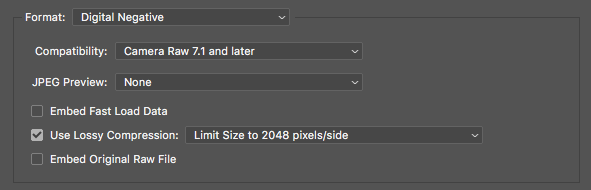
Make sure the format is DNG, and the settings are the same as below.
Transfer us the exported DNGs. You can discard these after you’ve transferred them over.
IN LIGHTROOM 14 or older:
Drag all your RAW files into Lightroom
Select all the files in the thumbnails, right click on any image, and choose EXPORT
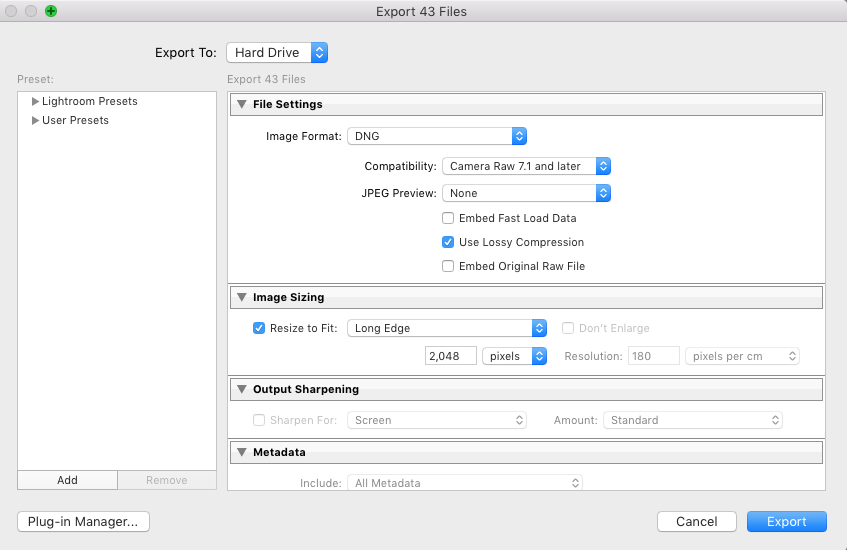
Make sure the format is DNG, and the settings are the same as below.
Make sure you DO NOT rename the files upon export (common error!)
Transfer us the exported DNGs. You can discard these after you’ve transferred them over.
We will extract and send back XMPs, which you add to your RAW folder, and bring into Photoshop/Camera Raw or LR
Settings for the DNG export in Photoshop/Camera Raw:
Settings for the DNG export in Lightroom:
Preparing your files
Here are a few guidelines to make the editing process as smooth as possible:
Do not crop your images ahead of time. If you’ve chosen for us to crop your images, we will do so. If you wish to crop the images yourself, we ask that this be done after you receive the edits from us.
If you’re sending us RAW files, make sure you send us RAW files only, without the XMPs that come attached. Those XMPs can hold certain settings, and we want to make sure we start off clean.
If you’re familiar enough with LR catalogs, you can send us catalog files with smart previews, instead of individual RAWs. A Lightroom Catalog with Smart Previews takes up only about 10% of the space a full set of RAW files does, while still retaining all the information we need to get the most out of your photographs. It can drastically reduce the time it takes to transfer your files. You can read about creating a Lightroom Catalog w/ Smart Previews in this ARTICLE.
I downloaded from your link, and the files is a .rar - what do I do?
.rar is a compressed archive, similar to a .zip. This happens by default when our transfer to you is a large size. To "un-archive" the .rar you will need a free software:
MAC users: Download THE UNARCHIVER
PC users: Download WINRAR
Once you've uncompressed the .rar, you will most likely get a .zip. Simply un-zip that one as well, and you'll be able to access the files we sent.
Importing photos from a different Lightroom Catalog
(source: Adobe Help)
When you import photos from a different Lightroom catalog into the current catalog, you can specify options to handle new photos and photos that already appear in the current catalog.
Choose File > Import From Another Catalog.
Navigate to the catalog you want to import and click Open (Windows) or Choose (Mac OS).
Specify the photos to import:
Under Catalog Contents, make sure the folders containing the photos to import are selected. To select or deselect individual photos, click Show Preview, and click the box in the upper-left corner of any preview image. You can also choose Check All or Uncheck All. - In the New Photos area, choose an option from the File Handling menu:
Add New Photos To Catalog Without Moving Imports photos at their current location. Copy New Photos To A New Location And Import Imports photos to a new location. Don’t Import New Photos Only photos that exist in the current catalog are imported. Lightroom determines a photo is a duplicate (already in the catalog) if it has the same, original filename; the same Exif capture date and time; and the same file size.
In the Changed Existing Photos area, do any of the following:
Replace metadata, Develop settings, and negative files to override all the settings in the current catalog. If you choose this option, you can select the Preserve Old Settings As A Virtual Copy option to keep a backup. You can also select the Replace Non-Raw Files Only option to avoid replacing raw negatives. If changes to raw negative files affect only metadata, selecting this option helps save time. Replace metadata and Develop settings only to leave the negative files (the source photos) unchanged. If you choose this option, you can select the Preserve Old Settings As A Virtual Copy option to keep a backup. Replace nothing to import only new photos.
If photos in the current catalog are missing and can be found in the imported catalog, indicate whether you want to update the metadata and Develop settings for these files. Select the Preserve Old Settings As A Virtual Copy option to keep a backup. If the photos missing in the current catalog appear in the imported catalog, specify whether the missing files are copied and where they copied to.
Click Import.
THE EDITED FILES: Working with a Lightroom Catalog
Import it the .lrcat file you received from us into LR. We suggest simply double-clicking on it.
The images may appear greyed out. Go to Library module, right click on the folder that should hold all the originals (it will have a ? mark), and select “find missing folder”. Select the folder on your computer with all the RAW files.
The files will sync up. It may take a few minutes for the images & edits to start appearing.
Review the editing and export.
THE EDITED FILES: Working with XMP files in Lightroom
Copy the XMP files back into your own folder with the RAW files (make sure you don’t do any re-naming while we’re editing them)
2a) Import that folder into a new Lightroom Classic Catalog
OR
2b) Open your existing Lightroom catalog that contains the images you sent for editing, find your images in the catalog, select all, right-click, and choose METADATA > Read Metadata from Files
Look over the edits and export
If the files appear without any edits, please get in touch with your editor, and CC info@imagesalon.com right away
THE EDITED FILES: Working with XMP files in Photoshop/Camera Raw
Move all the XMP files you received from us into your folder with all the RAW files.
Drag the RAW files + XMP files into Photoshop (it will open up Camera Raw)
Review the edits, select all, and export.
Why is the turnaround time longer than other post-production services out there?
The main benefit of working with us is the relationship between you and your editor, which results in more consistent editing that is tailored to your own look. As such, each editor works with the same 10-15 clients year-round and has to manage everyone’s work at the same time.
We believe that the benefits of working with the same editor far outweigh a faster turnaround time with less consistent results, caused by handing your images over to whichever editor can prepare your images the fastest.
We encourage you to plan an extra week into your usual delivery times, just to have a little breathing room.
Revisions & Corrections
What if I'm not happy with the final edits?
Get in touch with our team immediately! Your feedback is crucial to ensuring a smooth process and we encourage all clients to share their thoughts, positive or negative. If corrections are needed, let your editor know and they will be handled with top priority. Re-edits are typically returned within 1 business day.
What is the best way to give feedback to my editor?
Feedback is a crucial part of the process. Simply respond to the order delivery email, and it will be routed to our team.
There are a few different ways you can give feedback: visual side-by-side comparisons of your editing next to ours is always most helpful, but verbal communication or even a Zoom call might be a good idea to make sure your editor is on the right track! Also, make sure that your editor is using the correct preset and if not, email them the preset(s).
Additionally, if you are doing a sneak peek gallery for your clients, you can include those edited photos in your Lightroom Catalog as pre-edits for your editor to follow. This way, your editor can see exactly how you would typically edit your photos. If you are doing this, make sure to label the images in your Lightroom Catalog so that your editor can find them quickly!
Will I be able to make changes to the edits?
Absolutely! We even provide tutorials on how to quickly sync certain settings (such as tone curve, noise reduction, sharpening, etc...) or even how to make relative adjustments on an entire set of images.
What happens if I’m unsatisfied with the final results?
We strive to get your order right the first time around, though sometimes the editing may not look quite right on your end. Please reply to your delivery email ASAP as we treat re-edits with top priority.
Not fully satisfied with the settings we’ve applied in the Ai selection layers and would prefer to use your own?
Here’s how to adjust the settings across all images efficiently!
Select all the images in the session
Activate Auto-Sync
Open the Masking panel on one of the images
Select the Dodge Subject layer for settings to be applied to the subject
Adjust the settings within the mask to your preferred settings
Repeat the process for the Background Burn layer with settings you want applied to the background
Close your Masking panel and turn off Auto-Sync
All of your images will update with your new settings without having to re-process the Ai selection!
Other related Tickets:
How to Import an Ai Mask Preset in Lightroom
Ai masks aren’t appearing correctly
What if there is an issue with my order?
Any issues or corrections are handled with top priority, within 1 business day or less.
If you’re experiencing a technical glitch, simply reply to your delivery email and we will get back to you as quickly as possible.
If something looks off with the editing, you can provide feedback via email or via the feedback form in your Client Dashboard. Don’t start re-editing the images yourself, as we believe any corrections are our responsibility. The feedback process also helps us improve the service moving forward!
Communication and feedback are the key to a successful relationship, and our customer service team is always here to make things right should an issue arise!
General & Account
About Image Salon
What does Image Salon offer?
Our supported catalog is Web Design, Designer, copy and curation add-ons, Ai + Human, Culling, PROFILE, Find My Style, and Ai Profile Setup. PHAiTO is an external sibling service we may refer you to; it is not an Image Salon orderable service.
What is not currently offered?
Shoots, travel, pre-production, retainers, and full e-commerce are not currently defined Image Salon services.
What is Image Salon?
Image Salon is a creative engine for professional photographers. We support them through post-production and web design.
On the editing side we offer services that entail culling, colour correction, retouching, and other various parts of a photographer's post-production workflow..
On the web side we design, build, and host custom photography website.
We are working photographers ourselves, and have been helping photographers since 2014. Our editors are all located in Montreal, and the team has brought human judgment to more than 60 million photos.
Read more on the About page, or dig into each service at Post-Production and Web Design.
Where is Image Salon based, and who runs it?
We are based in Montreal, Canada, where the studio started in 2014. The company is 9327-2920 Québec inc., operating as Image Salon, with its head office at 4710 Saint-Ambroise, Suite 400, Montreal, Quebec.
The team is led by Victoria Dimaano (CEO), Daniel Kudish (Co-Founder), and Joey Kudish (CTO), alongside a crew of designers, retouchers, editors, and engineers.
Do you only work with photographers?
Yes. Everything we make is built for photography professionals and businesses. The services are not intended for consumers.
If you photograph for a living, whatever the genre, we're here to support you!
What is PHAiTO, and how is it related to Image Salon?
PHAiTO is an Image Salon company. When we set up an AI editing profile for you, the trained profile is built to work with PHAiTO, and you accept PHAiTO's own terms when you create a PHAiTO account.
Do I have to be part of the The Image Salon Clients Facebook page? Do I have to participate?
No, being part of and participating in the The Image Salon Clients Facebook page is optional, although we do post announcements regarding new features, promotions and updates on the page. You can also use the Facebook page to connect with other great photographers who use The Image Salon!
Who is running The Image Salon?
The Image Salon was started by photographers Davina & Daniel Kudish of DAVINA + DANIEL. Since 2007, they have photographed hundreds of weddings in their hometown of Montreal, as well as all around the world. Today, Image Salon is run by Daniel, Victoria (CEO), and Joey (CTO), along with an incredible team of editors, retouchers, and engineers.
Your Account
How do I create an account and sign in?
Create an account with your name and email, and we send a confirmation link to that address. The link is good for 24 hours — click it to activate your account. If it expires, request a fresh one from the sign-in page.
After that you sign in with your email and password to reach your dashboard, where you can find your orders, files, invoices, and account details.
I forgot my password. How do I reset it?
On the sign-in page, choose to reset your password and we email you a reset link. That link is good for one hour from the moment it is sent. Open it, set a new password, and you are back in.
Your password is private even from us — nobody at Image Salon can see it. If you did not ask for a reset, ignore the email and your current password keeps working.
How do I change my email address or password?
Navigate to the My Account page. To change your password, type a new one and confirm it — leaving those fields blank keeps your current password. To change your email, update it and save.
When your email changes, we will first send a heads-up to your old/current address. If you receive such an email but did not requests to change your email address, please contact us right away.
Can invoices or order updates go to more than one email?
Yes. Your primary email receives everything, and you can add up to 3 more addresses for invoices or order updates — handy for an accountant or a second shooter. Add them on your My Account page under Notifications, separated by commas.
Can I use my account in French?
Yes. On your My Account page there is an option to switch your account to French ("Changer mon compte en Français"). Your account works in English or French.
How do I delete my account?
You can delete your account from the bottom of your My Account page. A couple of things worth knowing first:
If you have a web design subscription, note that your site goes offline when the subscription ends — cancellation is handled separately, so read the Web Design answers before you close things down.
Post-production files are deleted periodically once work is complete anyway, so keep your own copies.
After deletion your data is no longer accessible through the site, though copies may remain in routine backups for a period before they are rotated out. If you'd rather we handled it, contact support.
Adjusting Your Personal Information and Payment Preferences
To change your personal information, simply log in to your Client Dashboard and go to My Account to adjust your name, e-mail, password, and VAT ID (if required on your invoices). To change your website, send us a quick message via the contact form, and we will adjust what we have on file for you!
To change your payment preferences, go to My Account on your Client Dashboard and select the Payments tab on the right. From there, you can update your billing information, and adjust your preferred payment methods.
Additionally, you can find your referral code on the right-hand side of your My Account page.
Billing & Payments
What payment methods do you accept?
We take the major credit cards — Visa, Mastercard, and American Express — and PayPal. Payments run through Stripe or PayPal, and you can add a card or connect PayPal on your My Account page.
Is my card secure? Do you store my card number?
We never store your full card number. Card details go straight to our payment processor (Stripe or PayPal) and are handled there, not on our servers. Data between you and the site is encrypted in transit as well.
What currency am I billed in?
Clients located in Canada get billed in Canadian dollars, and all other countries get billed in US dollars. Prices will be shown to you in the correct currency when you place an order.
All fees are exclusive of applicable taxes, which are added where required for customers located in Canada.
Can I add a VAT or tax ID to my invoices?
Yes. There is a VAT ID field on your My Account page — add it if it needs to appear on your invoices, and it will show on the ones we issue. Fees are exclusive of applicable taxes, which are added where required.
Where do I find my invoices and receipts?
Every invoice lives on your dashboard, so you can pull a copy whenever you (or your accountant) need one. Each invoice downloads as a PDF, and you can export all of them as a CSV from the same place.
For web design, a receipt goes out on every monthly charge with the invoice attached.
How do I update my billing details or card?
On your My Account page you can update your billing address (which also sets your invoice currency), add a new card, connect PayPal, and remove an old or expired card. Set whichever method you prefer as the default.
If you'd rather we made the change, contact support and we'll sort it out with you.
Do I get a receipt?
You will receive a receipt by email, and you can also download your paid invoices from your Client Dashboard.
How can I view and download an invoice?
All your invoices are displayed in the Client Dashboard. Simply log in, click on "View Orders" and download the required invoice from the list.
I noticed a mistake in my invoice. What should I do?
Simply reply to the email you received, or call us at the number listed on the website. Someone will promptly address the mistake and we will be happy to help you!
Do you issue 1099 forms?
Since we are based in Canada, we don't need to issue or fill out any 1099 forms.
Do you offer promotions?
We announce our promotions via email. Make sure you keep an eye out for those promos!
Refunds & Credits
Can I get a refund on a post-production order?
It depends on the status of the order:
Work not started yet — a full refund.
Work already started — we stop the process and refund the untouched images.
Order completed but the editing isn't right — tell us first; a refund is available only once you've reported the issue and we haven't been able to put it right in a reasonable time.
We can only refund or credit if you've given us the chance to correct the work — corrections are handled with top priority, typically within 1 business day. Anything outside these situations is at our discretion. A PROFILE commitment is never refunded as cash; it's held as credit on your account. Full terms are in the Post-Production terms.
If I cancel web design, do I get money back?
We don't refund partial months, and the subscription isn't pro-rated on the way out. But because nothing is charged until you approve a design, you are never paying for work you haven't signed off on.
There is no minimum term, so cancelling doesn't bring forward future monthly payments. The one thing that can fall due is the optional human-designer add-on: if you're paying it in monthly instalments and cancel before they're all paid, the remaining instalments fall due. The detail is in the Web Design terms.
How does account credit work?
Credit sits on your account balance and draws down automatically as your orders are placed. Your dashboard shows the running balance if you have one.
Credit can come from pre-purchasing, from a referral, or from a PROFILE commitment.
How does the referral credit work?
Refer a fellow photographer and we add a $25 credit to your account once they place and complete their first order. The credit then draws down against your own orders like any other balance, and there's no cap — refer as many people as you like.
Your referral link is in your account, and the referrals you've made show there with their status.
What happens to my PROFILE credit if I don't use it all, or I cancel?
Any PROFILE credit you don't use carries forward when you renew: it stays on your account on top of the new year's $2,500 commitment. Renewing is your choice each year.
If you cancel a PROFILE, or don't renew it, unused credit is held for 24 months. Come back within that window, pay a $500 reactivation fee, and your credit is available in full again. After 24 months any remaining credit lapses. Credit is never redeemable for cash and can't be transferred to another account.
How can I check my credit balance?
Credit balance is displayed in the Client Dashboard. Simply log in and choose “My Account”.
Will my credits or discounts be applied automatically?
Yes, if a valid discount code has been entered into the order, we will automatically apply it and the invoice will reflect the appropriate discount.
If you have a credit balance, we will apply it on your invoice before charging your credit card on file, if needed.
Support & Contact
How do I contact support?
The quickest route is the contact support form in your dashboard: pick the area it's about (post-production, web design, orders and billing, or your account), tie it to an order if relevant, set how urgent it is, and describe what's happening. Choose to be emailed back or called.
You can also reply to any email from us, write to info@imagesalon.com, or call 1 888 351-6731.
How quickly will I hear back from support?
Our working hours are Monday to Friday, 10am–6pm Eastern (Montreal), excluding Quebec statutory holidays. We aim to respond to urgent issues within 2 business hours, and to everything else within 1–2 business days.
What is the Help Center?
The Help Center is a chat where you can ask a question in your own words. Betsy (our AI assistant) answers what it can and forwards anything it can't to our human team. It's the fastest way to check whether something's already answered before you open a ticket.
What should I include when I contact support?
The more context, the faster we can answer in one reply. Useful things to include:
The topic it's about, and the related order if there is one.
How urgent it is.
What you expected, what happened instead, and when it started.
What you've already tried, so we don't repeat a step.
Screenshots or files, if they help.
I’m not too fluent in English. Can I get help in another language?
We have editors fluent in French. Just let us know, and we’ll set up a meeting with someone! Merci.
Privacy & Security
How do you handle my personal data?
We collect only the personal information needed to run your account and provide the services — things like your name, email, phone, and billing address. Payment details are handled by our processor (Stripe or PayPal) and aren't stored on our servers.
Data is encrypted in transit, access is limited to staff who need it, and you can access, correct, or delete your information from your My Account page or by asking us. Our Privacy Officer is Victoria Dimaano, reachable at info@imagesalon.com. The full detail is in our Privacy Policy.
Do you use my photos or my site to train AI?
We use AI in both services, and how much we train on differs:
Post-production: when you send images for editing, you licence us — and our affiliates (including PHAiTO) and technology partners — to learn from your material and the corrections made to it. This is what makes an AI editing profile that edits like you possible.
Web design: we train on design data — layout, structure, typography, spacing, colour, component patterns — not your photographs as images, and not the words you publish through the toolbar. This licence runs to us and our affiliates only, not to outside partners.
We won't use your images in our own marketing without asking first, and you can refuse. Models already trained can't be untrained. Full terms are in the Post-Production and Web Design schedules.
Who owns the data collected through the website you build for me?
You do. The people who visit and contact you through your site are your inquirers and your clients — we only hold and move that information to run the site on your behalf, and we don't use it to train anything.
Form inquiries are delivered by email to the address you give us; we don't keep the message, so your own inbox is the record — keep it. Because the site is yours, you're responsible for your own privacy policy and, where the law that applies to your visitors requires it, your own cookie notice and consent.
Do the websites you build use cookies or need a cookie banner?
We are still finalizing the visitor analytics on the sites we build, so we don't promise yet that a site needs no cookies or no banner. Once the analytics are approved, we will tell you exactly what our measurement places on a visitor's device, if anything.
Your site is still yours, though — if you add anything that sets cookies (an embed, a pixel, a booking tool), or the law that applies to your visitors requires it, providing a cookie notice and consent is your responsibility. If you'd like a definitive answer for your specific site, contact support and we'll confirm.
Does imagesalon.com use cookies? Where is the cookie policy?
Yes. Our own website and dashboard use technical cookies or similar storage, for example to keep you signed in and remember your preferences. Any analytics we add will be listed in our Cookie Notice, along with a way to manage your choices wherever consent is needed.
The details live in our Cookie Notice and Privacy Policy. This is separate from the sites we build for clients, which are covered above.
How long do you keep my files?
For post-production, we store the files you submit only as long as needed to do the work, then delete them periodically once it's complete — we're not a backup service, so always keep your own copies. Delivery download links expire too, so grab your files when they're ready.
For web design, the material you provided and the content you created is kept for as long as your subscription is active. After a site goes offline you have 90 days to ask for your content, and we deliver it within 30 days of the request.
Retired Services & Products
Post-Production
What happened to EXPRESS editing?
EXPRESS post-production was retired in October 2026.
Photographers who were using the Lightroom Express editing are encouraged to try PHAiTO, our Ai editing platform which has been trained on 1M+ human edits, and offers the same Looks previously available on Express orders.
Photographers who were using the Photoshop Express retouching are invited to start a PROFILE where editing is tailored specifically for your workflow, including all of the retouching options previously available on Express orders.
What happened to RETOUCHING?
Photographers who were using our RETOUCHING service are invited to start a PROFILE where editing is tailored specifically for your workflow, including all of the retouching options previously available on Express orders.
What happened to PROFILE / PROFILE+?
Post-production workflows have evolved significantly since we launched in 2014. While those two options made sense back then, they were preventing us from fully adapting to a photographer's unique process. PROFILE & PROFILE+ no longer exists in its previous format, and instead photographers can now build their own fully custom PROFILE by requesting one from the client dashboard.