How to: Create small DNG files from your RAW
Watch on YouTube — How to: Create small DNG files from your RAW
If you're a Photoshop/Camera-RAW only user, or you're still using an older version of Lightroom Classic, we have a solution for you, to avoid sending huge RAW file transfers.
We ask & encourage you to export your RAW as small DNGs, by following these simple steps:
IN PHOTOSHOP:
Drag all your RAW files into Photoshop, which will pull up Camera Raw.
Select all the files in the thumbnails, and press Save Images.
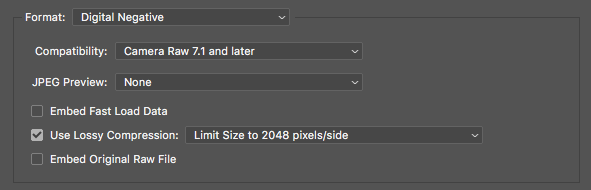
Make sure the format is DNG, and the settings are the same as below.
Transfer us the exported DNGs. You can discard these after you’ve transferred them over.
IN LIGHTROOM 14 or older:
Drag all your RAW files into Lightroom
Select all the files in the thumbnails, right click on any image, and choose EXPORT
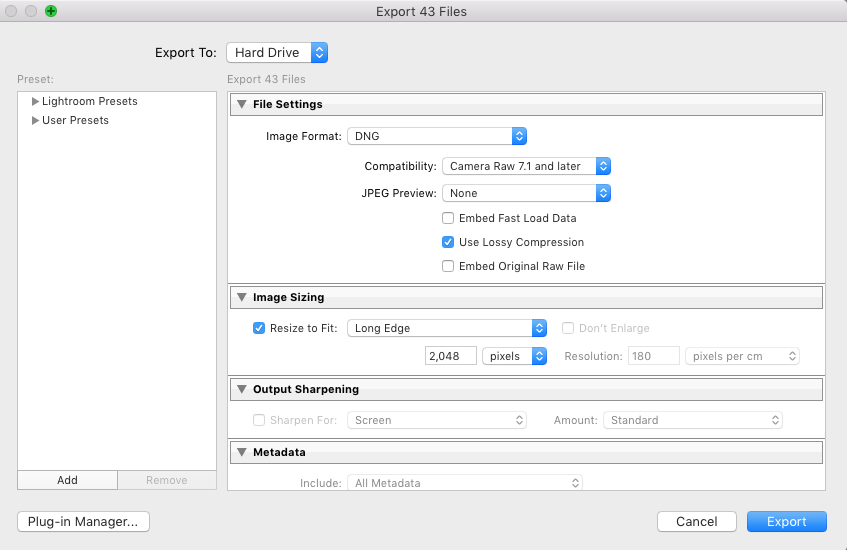
Make sure the format is DNG, and the settings are the same as below.
Make sure you DO NOT rename the files upon export (common error!)
Transfer us the exported DNGs. You can discard these after you’ve transferred them over.
We will extract and send back XMPs, which you add to your RAW folder, and bring into Photoshop/Camera Raw or LR
Settings for the DNG export in Photoshop/Camera Raw:
Settings for the DNG export in Lightroom:
Related questions
Still have a question? Ask Betsy, or browse every answer. See Post-Production.